How to keep your Teams status active instead of Away
Teams sets you to Away after about five minutes without keyboard or mouse input, and also when your computer sleeps or locks or you minimize Teams. Microsoft says you can’t change that five-minute timer. To keep your Teams status active while you read or sit on a call, set a status message so people know you’re around, or use something that creates input while you’re idle, like a mouse jiggler or StayUp, the app I make.
You’re reading a long spec, or on a call from your phone, or just thinking, and the dot next to your name in Teams turns yellow. To anyone looking, you’ve wandered off. This post covers why that happens, what Teams itself lets you do about it, and the tools people use when that isn’t enough.
One thing first: if you’ve actually left your desk, Away is the right status. Everything below is for the time you’re working without touching the keyboard. If it’s a work computer, check your IT policy before installing anything.
Why Teams shows you as Away when you’re not
Microsoft’s support page on this lists three triggers: about five minutes of inactivity, your computer going to sleep, and minimizing Teams. Their troubleshooting article adds locking your computer, and using the Teams mobile app instead of the desktop one.
“Inactivity” means no keyboard or mouse input. Teams can’t tell reading from being out to lunch. Both look like a computer nobody has touched.
Can you change the five-minute away timer?
No. Microsoft says plainly that you “currently can’t change the inactivity timeout”. You’ll find guides that point to an “away after” setting inside Teams, but Microsoft’s own page says there isn’t one.
Slack works the same way with a longer fuse: it sets you to away after ten minutes of desktop inactivity.
What Teams itself lets you do
These cost nothing and don’t need anything installed, so try them first.
Set a status message
This is Microsoft’s own suggested workaround. Click your profile picture, choose Set status message, write something like “Available, reading docs”, tick Show when people message me, and pick when it clears. The dot can still go yellow, but anyone who messages you sees that you’re there.
Set a status with a duration (but not Available)
Under your profile picture → your status → Duration, you can hold a status until a time you choose. Microsoft’s page on changing your status is clear about two limits:
- You can set a duration for any status except Available.
- A more available status like Busy won’t override a less available one like Away, even with a duration.
So Duration is good for “Busy until 3pm” or Do not disturb during focus time. It won’t keep you green.
Don’t minimize Teams, and don’t leave it running on your phone
Minimizing counts as a trigger. On Windows, Microsoft suggests snapping Teams to one side of the screen with your work on the other, so it never gets minimized. Using Teams on your phone while the desktop app sits idle can also leave you showing Away, so close the mobile app when you’re back at your desk.
Teams on the web: keep your status when you switch tabs
If you use Teams in a browser, Microsoft documents a setting called Keep my current status when I’m active outside of Teams on the web, so working in other tabs and apps doesn’t flip you to Away.
Stop the computer itself from going idle
Two of Microsoft’s triggers belong to your computer, not Teams: sleep and lock. Microsoft’s own advice is to change your device’s sleep and idle settings so it takes longer before you switch from Available to Away.
- macOS: System Settings → Lock Screen → Turn display off on power adapter when inactive (and the battery version below it).
- Windows 11: Settings → System → Power & battery → Screen and sleep.
If you don’t want to change those permanently, keep-awake tools do it on demand:
- caffeinate is built into macOS.
caffeinate -din Terminal stops the display sleeping until you press Ctrl-C. - PowerToys Awake is Microsoft’s free tool for Windows. It keeps the PC awake indefinitely, for a set time or until a set time, without changing your power plan.
- Amphetamine is a free Mac App Store app that does the same from the menu bar, with timers and triggers.
These deal with sleep and lock. They don’t press keys or move the mouse, and Microsoft lists inactivity as a trigger of its own, so on their own they don’t stop the five-minute switch to Away.
Tools that create activity
To stay Available through a long stretch without touching anything, something has to give the system input. There are two common ways.
Mouse jigglers
A mouse jiggler, either an app or a small USB device, nudges the pointer every so often. It works. The catch is that most of them move the pointer on a timer whether or not you’re using it, so it can drift while you’re reading or about to click.
StayUp
StayUp is the free menu-bar app I make for macOS and Windows. It does two things:
- Keeps the computer awake through the operating system’s own sleep settings, the same way caffeinate and PowerToys Awake do.
- Keeps you active, only once you’ve gone idle. It checks every 15 seconds how long it’s been since your last keyboard or mouse input. After four minutes with nothing, it presses F15 and keeps pressing it every four minutes until you’re back. F15 is a key almost no keyboard has and almost no app reacts to, but the system still counts it as input. The moment you touch the keyboard or mouse it stops, so it never presses anything while you’re typing. It never moves the pointer.
The default four minutes lands inside Teams’ five. You can change the wait and the gap in Settings, and pick F13, F14 or F16 if F15 clashes with something you use.
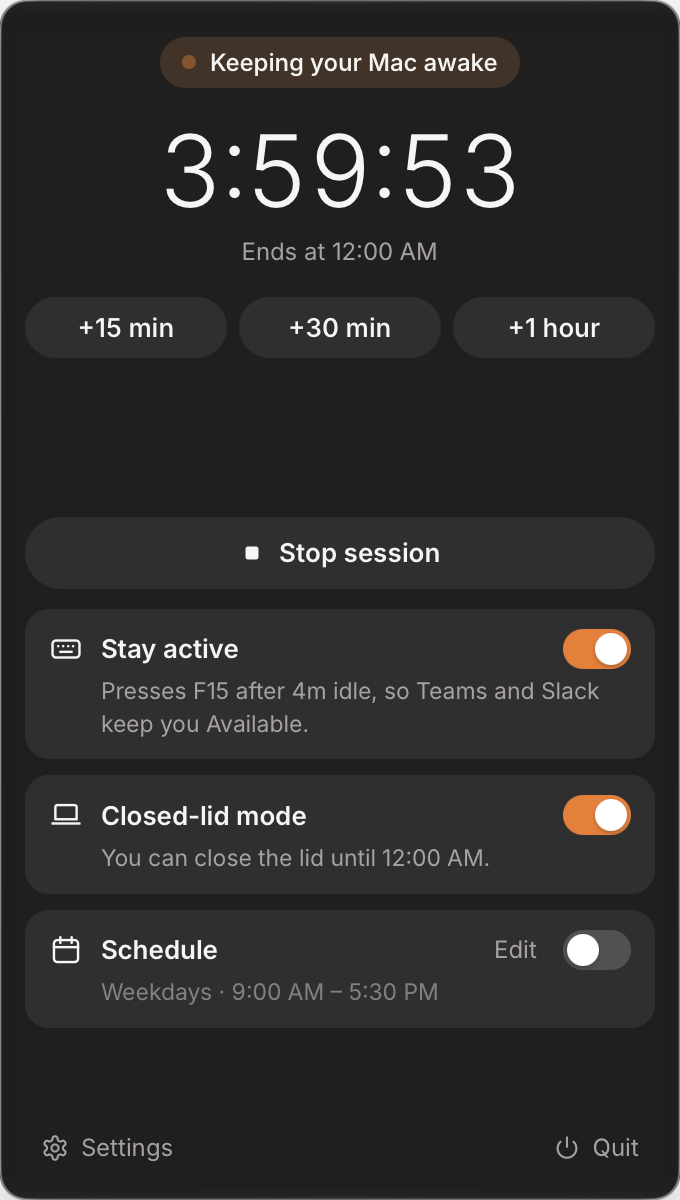
It doesn’t have to run all day. Start a session for a set time or until a time of day, add 15 minutes or an hour without stopping, give it a weekday schedule, or have it pause on battery.
Green every minute of the day can look as odd as yellow. Away breaks, part of StayUp Pro, pause the key presses at set times, such as lunch from 1:00 to 2:00, or for a few short random spells through the day, so Teams shows you Away as it would on a normal day. The screen stays awake throughout, and the presses resume when the break ends. In my tests Teams went Away about five minutes into a break and was green again within about 20 seconds of it ending.
The same honest limit applies to StayUp as to any jiggler: it can’t tell reading from being out of the room. Left on while you’re gone, it keeps you green while you’re gone. Switch it off when you step away (there’s a hotkey, Option-Command-K on a Mac and Ctrl-Alt-K on Windows), or use a timer so it ends by itself.
A few things to know before you install it:
- On a Mac, the “stay active” part needs Accessibility access, which macOS requires before an app can press keys. The welcome window walks you through it. Without it, StayUp still stops sleep.
- It isn’t notarized by Apple or signed for Windows yet, so a browser download needs an extra click past Gatekeeper or SmartScreen the first time. The Mac Terminal install on the download page skips that.
- If you only want the screen kept on, switch Stay active off. Then it’s a keep-awake tool and presses nothing.
- Away breaks and closed-lid mode are part of StayUp Pro, $5 once, with a 2-day free trial. Everything else is free.
Which one should you use?
- You want people to know you’re around: a status message. Built in and honest.
- You’re going heads-down and don’t want to be disturbed: Busy or Do not disturb with a duration.
- Your screen locks or sleeps too early: change your power settings, or use caffeinate, PowerToys Awake or Amphetamine.
- You’re at your desk reading, thinking or on a call, and still go yellow after five minutes: you need something that creates input while you’re idle, like StayUp or a jiggler.
Whichever you pick, check your organization’s policy first on a work device. Some workplaces don’t allow tools that change sleep settings or simulate input.
StayUp is free for macOS 10.15 or later and Windows 10 and 11, on its download page.