How to Keep Your Mac Awake for Claude Code (and Codex)
To keep your Mac awake for Claude Code, start it with caffeinate -i claude. The Mac stays awake until the session ends, and the screen can still turn off. In Claude Desktop, turn on Keep computer awake; in Codex CLI, try Prevent sleep while running under /experimental. None of these survive closing the lid, which needs an external display or a closed-lid mode.
You give Claude Code a long task, go and make lunch, and come back to find it stopped halfway because the Mac fell asleep. This post covers why that happens and each of those fixes, plus the Windows equivalents. Near the end I’ll show where StayUp, the free keep-awake app I make, fits in, and where it doesn’t.
Why a long agent run stops when your computer sleeps
A coding agent on your machine is an ordinary process. It needs the computer awake to run, and it needs the network to reach the model. Anthropic’s docs say it directly: Claude Desktop’s scheduled tasks “only run while the desktop app is running and your computer is awake”, and a run is skipped if the computer sleeps through its time. For Remote Control, your computer “has to stay on and the claude process has to keep running”.
The screen going dark is a different thing. macOS treats the display and the system separately: Apple’s sleep settings have one switch for turning the display off when inactive and another, Prevent automatic sleeping on power adapter when the display is off, for keeping the Mac itself awake after that. What you need for an agent is the second: system sleep blocked. The screen can turn off.
caffeinate: the built-in way on a Mac
Every Mac has caffeinate in Terminal. From its man page (man caffeinate):
-iprevents the system from idle sleeping.-dprevents the display from sleeping.-tsets a timeout in seconds, after which the assertion is dropped.-wwaits for a process ID to exit, then releases the assertion.- If you give it a command to run, it holds the assertion for as long as that command runs.
That last one is the neatest fit. Start Claude Code through caffeinate:
caffeinate -i claudeThe Mac won’t idle-sleep while that session is open, and goes back to normal when you quit it. The same works for Codex with caffeinate -i codex.
If Claude Code is already running, find its process ID and attach to it instead:
pgrep -fl claude          # lists matching processes and their IDs
caffeinate -i -w 12345    # replace 12345 with the ID
Or just set a time limit, here two hours:
caffeinate -i -t 7200You can check that it’s working with pmset -g assertions. This is trimmed output from my Mac while caffeinate -i -t 20 was running:
Assertion status system-wide:
   PreventUserIdleDisplaySleep    0
   PreventUserIdleSystemSleep     1
Listed by owning process:
   pid 40508(caffeinate): [0x0000187b00018ae9] 00:00:01 PreventUserIdleSystemSleep named: "caffeinate command-line tool"
	Timeout will fire in 19 secs Action=TimeoutActionRelease
PreventUserIdleSystemSleep is the one that matters for an agent. It’s worth running this anyway, because it also shows you anything else that’s already holding your Mac awake.
Claude Desktop and Codex have their own settings
Claude Desktop has a Keep computer awake switch. Anthropic’s scheduled tasks page says to turn it on in Settings > This computer > System “to prevent idle-sleep”, and adds that closing the laptop lid still puts it to sleep. If you run Claude Code inside the desktop app, that’s the first thing to try.
Codex CLI has an experimental option called Prevent sleep while running, which you switch on from /experimental. Its pull request describes it as caffeinate -i behaviour: idle system sleep is blocked only while a turn is running, and the display can still sleep. It’s off by default.
Both are tied to the agent’s work, which is what you want. Use caffeinate or an app when you’re on a version without them, or when you want the Mac awake on your own terms.
On Windows
Windows has the same split. Under Settings → System → Power & battery, Microsoft’s power settings page lists Turn my screen off after and Make my device sleep after as separate timeouts.
To see what’s currently keeping the PC awake, or why nothing is, run powercfg /requests in a terminal. Microsoft’s powercfg reference describes it as listing the application and driver power requests that stop the computer turning off the display or going to sleep.
For an on-demand switch, PowerToys Awake is Microsoft’s free tool. It can keep the PC awake indefinitely, for a set time or until a set time, without changing your power plan, and by default it lets the displays turn off. Its command line has a --pid option that ends Awake when a given process exits, much like caffeinate -w. One limit Microsoft spells out: Awake doesn’t work when the lock screen is showing.
Closing the lid is a different problem
This is where most people get caught. caffeinate, Claude’s own setting and most keep-awake apps block idle sleep. Closing the lid on a MacBook isn’t idle, and Anthropic’s docs say plainly that closing the lid still puts the Mac to sleep with Keep computer awake on. The KeepingYouAwake README says the same of that app: it only prevents sleep on desktop Macs and laptops with the lid open.
The supported way to run a MacBook closed is with an external display. Apple’s external display help says a closed-lid Mac laptop driving a display needs to be connected to power and using an external keyboard and mouse.
Without a monitor, the lid’s sleep can only be switched off with an administrator setting, pmset disablesleep. That works, but it’s system-wide and stays on until you undo it, so a Mac left that way never sleeps, even in a bag. StayUp’s closed-lid mode, below, switches it on only for a session and always puts it back. I’ve written up every option, with the risks, in how to keep a MacBook awake with the lid closed.
If you’d rather not change any system setting, leave the lid open, plugged in, and let the screen go dark. Or run the agent somewhere that doesn’t sleep.
Menu-bar apps
If you’d rather click than type:
- Amphetamine is free on the Mac App Store. Sessions can run indefinitely, for a set time, or while a particular app is running, and you can let the display sleep while the Mac stays awake. Its listing also offers keeping a MacBook awake with the lid closed, which needs an extra script and admin rights.
- KeepingYouAwake is a small open-source menu-bar wrapper around caffeinate. It runs indefinitely or for a set duration, and installs from GitHub or with Homebrew.
Where StayUp fits
StayUp by Scanner Techs is a free menu-bar and tray app for macOS 10.15 or later and Windows 10 and 11. Its other job is keeping chat apps from marking you Away while you read or think (that’s the subject of my post on keeping Teams active), but it’s also a plain keep-awake switch.
For an agent run, switch Stay active off, so it presses nothing and needs no special permissions, and start a session. It holds the Mac awake through the system’s own power API, the same kind of assertion caffeinate makes, and you can see it in pmset -g assertions too.
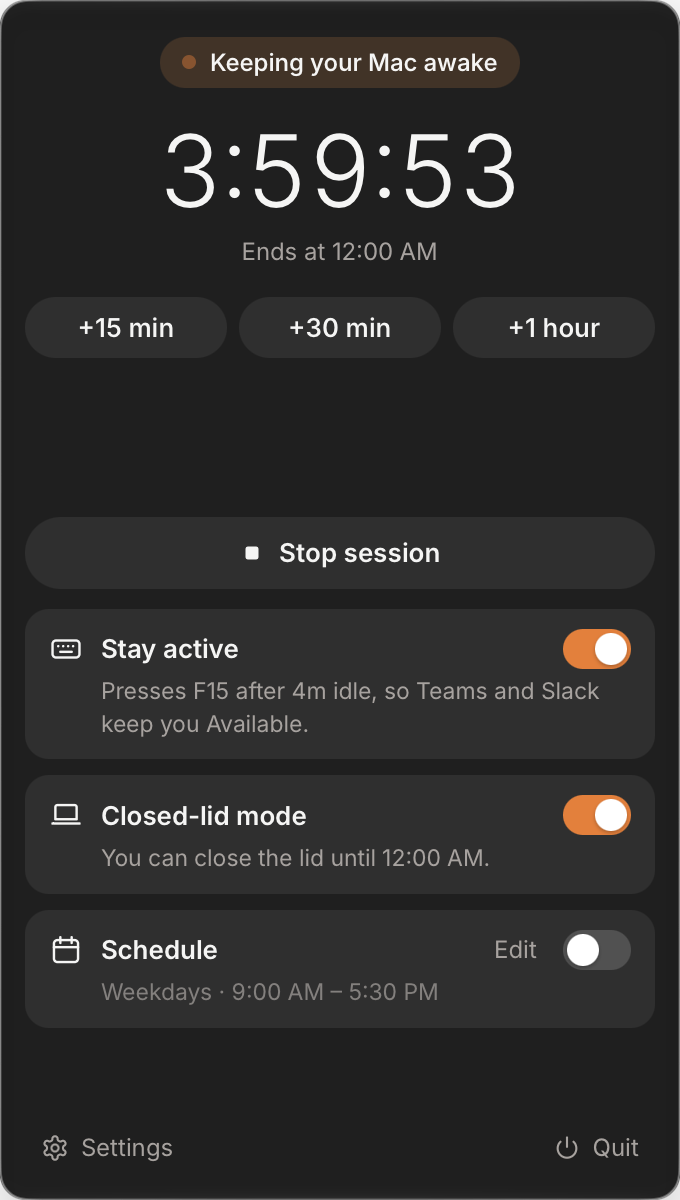
What it adds over a Terminal command:
- Sessions for a set time, until a time of day, or with no end, and +15 min, +30 min or +1 hour without stopping, so a run that takes longer than expected doesn’t get cut off.
- Closed-lid mode (Mac, part of StayUp Pro): let your AI agents work, even with the lid closed. Close it and Claude Code keeps running, for up to 4 hours a session, on the charger unless you allow battery. It asks for your Mac password once to set up, and sleep always comes back when the session ends, when you quit, or within a couple of minutes if StayUp crashes.
- A weekday schedule with start and end times, including overnight ones like 22:00 to 02:00.
- Pause on battery, or below a battery percentage you choose.
- A hotkey to start and stop a session: Option-Command-K on a Mac, Ctrl-Alt-K on Windows.
- The same app on both systems, if you work across a Mac and a PC.
And the limits, plainly:
- It keeps the screen on while the lid is open. StayUp blocks display sleep and system sleep together. If you want the screen to go dark during a long run with the lid open,
caffeinate -i, Codex’s option or Amphetamine do that and StayUp doesn’t. - Closed-lid mode is Pro and Mac-only. StayUp Pro is $5 once, and you can try it free for 2 days.
- It doesn’t watch the agent. It stays on until you stop it or its timer or schedule ends, not when your session finishes.
caffeinate -i claudeand Codex’s setting do follow the process. - It isn’t notarized by Apple yet, so a browser download needs an extra click past Gatekeeper the first time. The Terminal install on the download page skips that.
Which should you use?
- You use Claude Desktop: turn on Keep computer awake.
- You use Codex CLI: try Prevent sleep while running in
/experimental. - You use the Claude Code CLI on a Mac:
caffeinate -i claude. It ends when the session does and lets the screen sleep. - You’re on Windows: PowerToys Awake, and
powercfg /requestsif the PC still sleeps. - You want a menu-bar switch with timers or a schedule, the same on Mac and Windows, and don’t mind the screen staying on: StayUp with Stay active off.
- You want to close the lid: StayUp’s closed-lid mode, or an external display with power. Everything else above stops when the lid shuts.
On a work computer, check your IT policy before installing anything that changes sleep behaviour. StayUp is free on its download page; closed-lid mode is part of StayUp Pro.