How to Keep a MacBook Awake With the Lid Closed
A MacBook goes to sleep when you close the lid, whatever keep-awake app is running. Apple’s supported way to keep a MacBook awake with the lid closed is closed-display mode: connect the charger, an external display, a keyboard and a mouse, then close it. Without a display, the one setting that really turns lid sleep off is sudo pmset -a disablesleep 1, which you have to remember to undo, or an app that switches it for you, like Amphetamine with Amphetamine Enhancer or StayUp’s closed-lid mode.
You start an AI agent, a long build or a download, close the MacBook to carry it to the next room, and it stops. This post covers why, what Apple supports, what can go wrong with pmset, and how the apps handle it, including the one I make.
Why closing the lid always sleeps your Mac
macOS has two kinds of sleep. Idle sleep happens when nobody has touched the keyboard or mouse for a while, and apps are allowed to hold it off: that’s what caffeinate, Claude Desktop’s Keep computer awake switch, Amphetamine’s normal sessions and most keep-awake apps do. Lid sleep happens the moment you close a MacBook, and those requests don’t count. Anthropic’s own docs for Claude Code say it plainly: closing the lid still puts the Mac to sleep with Keep computer awake on.
So a tool that “keeps your Mac awake” almost always means “awake with the lid open”.
The supported way: an external display
Apple supports running a MacBook closed, which it calls closed-display mode, but only as a desktop. Its external display help says a closed-lid Mac laptop driving a display needs to be connected to power and using an external keyboard and mouse.
If that’s how you work, you don’t need anything else: plug in the charger and a monitor, close the lid, and the Mac carries on. It doesn’t help when you want to close the lid and walk away with no monitor at all.
The setting that turns lid sleep off: pmset disablesleep
Without a display, the only switch is a system-wide power setting that needs an administrator:
sudo pmset -a disablesleep 1With it on, closing the lid no longer sleeps the Mac. To turn it back off:
sudo pmset -a disablesleep 0It works, and it’s what every closed-lid tool uses underneath. The catch is that it stays on until something turns it off. It isn’t tied to an app or a session. Forget it, or have the script that set it crash, and the Mac never sleeps again, including closed in a bag, where it gets hot and drains the battery. pmset -g shows SleepDisabled 1 while it’s on, which is worth checking if your Mac ever seems unwilling to sleep.
If you use it by hand, set it right before you close the lid, keep the Mac on the charger and somewhere it can breathe, and switch it off as soon as the job is done.
Amphetamine
Amphetamine is a free, long-standing keep-awake app on the Mac App Store. Its listing offers keeping a MacBook awake with the lid closed, which needs an extra script, Amphetamine Enhancer, and admin rights. If you already use Amphetamine, that’s the natural place to start.
StayUp’s closed-lid mode
StayUp is the menu-bar app I make for macOS and Windows. Keeping your computer awake, timers, schedules and keeping Teams and Slack green are free. Closed-lid mode is part of StayUp Pro: it lets your AI agents work, even with the lid closed. It’s built around the problem above, switching disablesleep on only for as long as you need it and always putting it back.
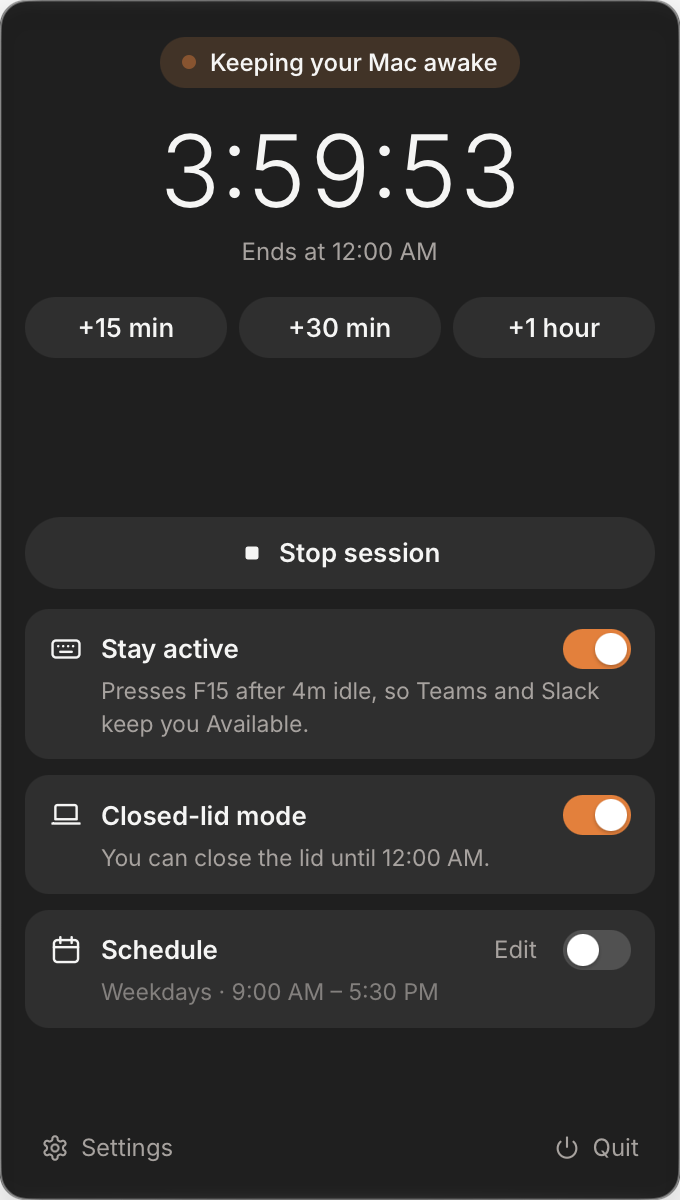
How it works:
- One-time setup. The first time you switch it on, StayUp asks for your Mac password once and adds a rule that lets it run exactly
pmset -a disablesleep 0and1without asking again, and nothing else. You can remove that rule from Settings at any time. - Only during a session. Start a session for a set time, until a time of day, or with no end. Closed-lid mode is on while the session runs, and the card tells you until when you can close the lid.
- Sleep always comes back. StayUp writes down the previous setting before changing it, and restores it when the session ends, when you quit, and the next time it starts. If StayUp crashes or is force-quit, a small background helper puts sleep back within about two minutes.
- Limits you can’t forget about. Closed-lid mode stops after 4 hours even in an open-ended session. It only runs on the charger unless you allow battery in Settings, and then it stops below a battery level and after a time limit you choose. Unplugging the charger stops it, and plugging back in doesn’t quietly restart it.
I tested it on a MacBook with the lid shut and no display: with a session running it stayed awake for five minutes without a gap, and with StayUp quit, macOS logged Clamshell Sleep within seconds of the lid closing.
StayUp Pro is $5 once, and you can try it free for 2 days: the trial starts the first time you switch closed-lid mode on. It needs macOS 10.15 or later.
What about Windows?
Windows lets you choose what closing the lid does. In Control Panel, under Power Options, Choose what closing the lid does, set it to Do nothing for “Plugged in”. That’s built in, so you don’t need an app for it; StayUp’s closed-lid mode is Mac only.
Which should you use?
- You work at a desk with a monitor: Apple’s closed-display mode. Charger, display, keyboard and mouse, close the lid.
- You need it once and don’t mind Terminal:
sudo pmset -a disablesleep 1, and remember to set it back to0. - You already use Amphetamine: its closed-lid option with Amphetamine Enhancer.
- You want it switched on only for a session and always undone, with a time limit and battery rules: StayUp’s closed-lid mode.
Whatever you use, a closed MacBook still makes heat. Keep it on a hard surface, not in a bag, while it’s working. On a work computer, check your IT policy before changing sleep settings. StayUp is on its download page, and closed-lid mode is part of StayUp Pro.