Why Your iPhone Uploads HEIC Photos as JPG
Yes, your iPhone converts HEIC photos to JPG when you upload them from Safari, and the website isn’t the cause. The iPhone’s photo picker does it: its Format option is set to Automatic by default, and on a web page that hands over a JPEG. Open the picker’s options, choose Current, and the original HEIC goes through instead.
Tested on iOS 27 in the iPhone Simulator, October 2026.
A user of Dropple, the app I make for sending files between a phone and a computer, emailed me about exactly this. His camera was set to HEIF, yet every photo he sent from Photos arrived on his computer as a JPEG. Dropple doesn’t convert anything, so I set up a test to find where it happened.
Does iPhone automatically convert HEIC to JPG?
In these cases, yes:
- Uploading from Photo Library in Safari. The picker’s Format option defaults to Automatic, which gave the page a JPEG in every test below.
- Sharing. Apple’s HEIF and HEVC page says shared media “might automatically be shared in a more compatible format, such as JPEG”.
- Copying to a computer with a cable. The same Apple page says photos may be converted to JPEG on the way.
The photos in your library stay HEIC. The conversion happens to the copy that leaves the phone.
What I tested
I made a web page with six file inputs and opened it in Safari. Each input asked for files in a different way, through its accept attribute: nothing at all, image/*, a list of only HEIC, HEIF, JPEG and PNG, and so on. I picked the same HEIC photo through each one and had the page read the first bytes of whatever it received. A JPEG starts with FF D8; a HEIC file has ftypheic near the start.
| How the photo was picked | What the page got |
|---|---|
Photo Library, Format Automatic (the default), no accept |
test-photo.jpeg, JPEG bytes |
Same, accept="image/heic,image/heif,*/*" |
JPEG |
Same, accept listing only HEIC, HEIF, JPEG and PNG |
JPEG |
| Photo Library, Format Current | test-photo.heic, image/heic, the original bytes |
So the page can’t change the result: even asking for HEIC by name got a JPEG. The setting that does change it is in the picker, not in the Settings app.
How to upload HEIC from iPhone without converting to JPG
- On the web page, tap the upload button and choose Photo Library.
- Tap the options button at the bottom right of the picker.
- Under Format, choose Current, then tap Done.
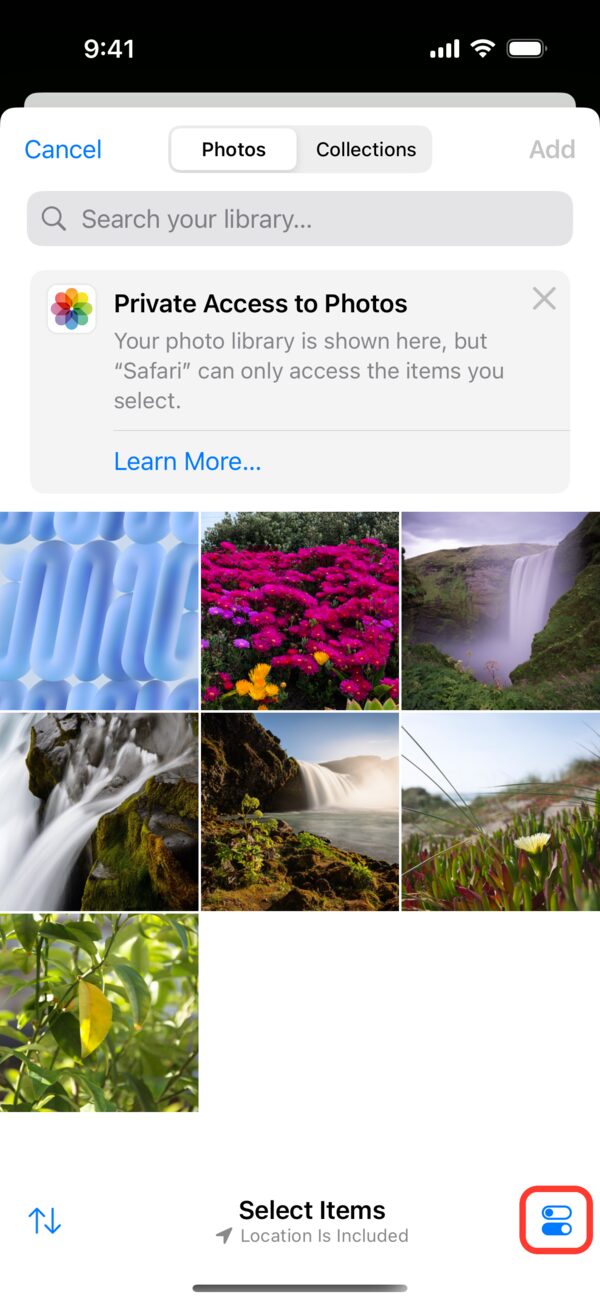
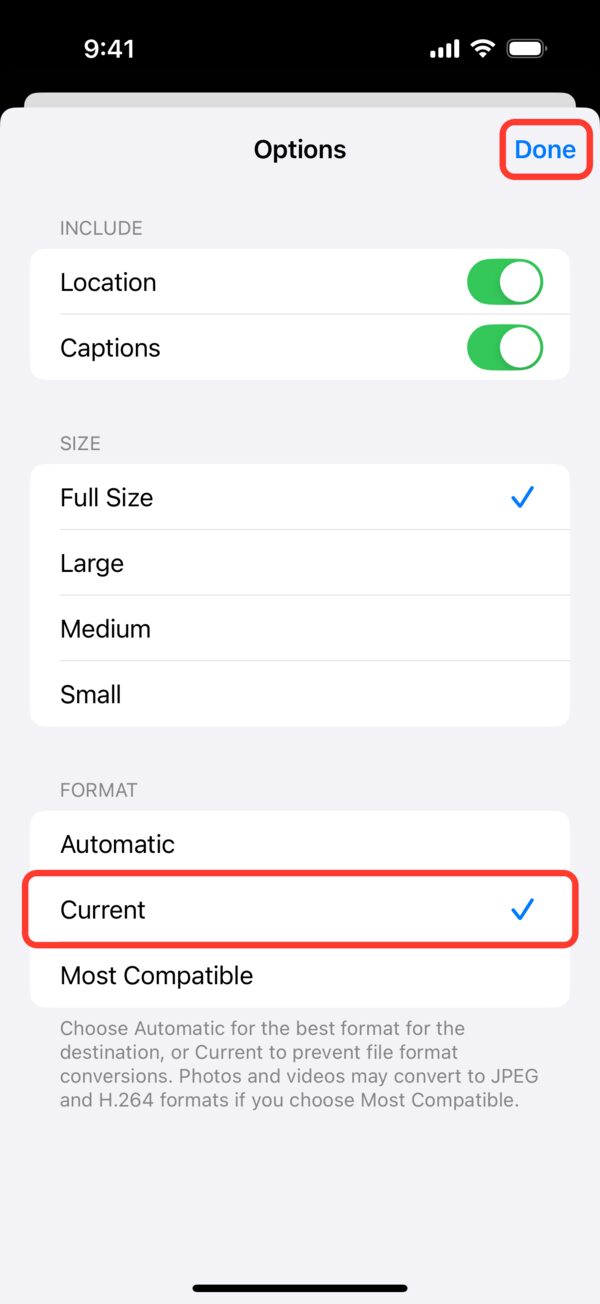
The picker remembers it. When I opened it again later, Current was still ticked, so you set it once rather than every time.
The note under the options explains the three choices: Automatic picks “the best format for the destination”, Current prevents conversion, and Most Compatible may turn photos into JPEG and videos into H.264. These screenshots are from iOS 27; on an older iOS the button may look different or sit elsewhere.
How to make iPhone upload JPG instead of HEIC
Some sites still reject HEIC. Three ways round it:
- For one upload: leave the picker on Automatic, or choose Most Compatible. In my test Automatic already gave the page a JPEG.
- For every new photo: Apple says to go to Settings > Camera > Formats and choose Most Compatible, after which new photos use JPEG. Photos you already took stay HEIC.
- When copying to a computer with a cable: if you’d rather keep HEIC there, Apple points to Settings > Apps > Photos and Keep Originals.
Why iPhone converts HEIC to JPG
Apple calls HEIF and HEVC its “space-saving” formats, but plenty of software still can’t open them. So when a photo leaves the Photos app, iOS tends to send a copy in a format the other side is sure to read. Upload pages in Safari get the same treatment, and a page has no way to tell Safari it can handle HEIC.
Apps are different. The photo picker Apple gives app developers can be asked for the photo in its current format instead of a compatible one; Apple’s own sample code for the picker does exactly that.
Where this leaves Dropple
On iPhone, Dropple works through a page in Safari: you scan a QR code on the computer and send from the browser. So it’s subject to the picker’s setting like any other site. With Format on Current, your photos reach the computer as HEIC; on Automatic, they arrive as JPEG.
On Android, the Dropple app sends the file exactly as it’s stored on the phone, so there’s nothing to change there.
If you want to send photos from your phone to a Mac or Windows PC over your own Wi-Fi, without an account, Dropple is free from its download page. For other ways to do it, see AirDrop from iPhone to Windows.
Questions people ask
Can a website stop an iPhone converting HEIC to JPG?
No. In my test on iOS 27, Safari handed the page a JPEG even when the file input asked only for HEIC, HEIF, JPEG and PNG. Only the person choosing the photo can change it, with Format set to Current in the photo picker's options.
Do I have to change the Format setting every time?
No. The picker remembers it. After I chose Current once, it was still selected the next time the picker opened.
Does Settings > Camera > Formats change what gets uploaded?
It changes the format new photos are taken in. Most Compatible makes new photos JPEG, so they upload as JPEG anyway. It doesn't change photos you already took, and it doesn't stop the picker converting HEIC photos when you upload them.
Does this affect videos too?
The picker's own note says Most Compatible may convert videos to H.264 as well as photos to JPEG, and that Current prevents file format conversions. I only tested photos.
Do iPhone apps convert HEIC to JPG as well?
Not necessarily. Apple's photo picker for apps lets the developer ask for the photo in its current format, so an app can receive the original HEIC without you changing anything. Web pages in Safari can't ask for that.