Make a Jigsaw Puzzle From Your Own Photo (Free, Private)
Yes, you can turn any photo into a jigsaw puzzle and do it on your phone or computer without paying or signing up. This post covers which photos make a good puzzle, how many pieces to choose, where your photo goes once you’ve picked it, and the free sites people use for it, including the one I make, Jigsaw.
If what you actually want is a cardboard puzzle in a box, skip to the last section. Everything else here is about puzzles you do on a screen.
Which photos make a good puzzle
A jigsaw is solved by matching small patches of picture, so the photo matters more than anything else. Some practical rules:
- Detail everywhere beats one big subject. A crowd, a market stall, a garden or a busy street gives every piece something to recognise. A portrait against a plain wall gives you one interesting area and a lot of identical beige pieces.
- Contrast and colour help. Pieces you can sort by colour are pieces you can place. Dark, foggy or low-contrast photos turn into guessing.
- Large flat areas are the hard part. Clear sky, snow, water and walls are where puzzles slow down. That’s fine if you want it hard. If not, crop them out before you start.
- Use the original file, not a screenshot. A puzzle is shown much bigger than a thumbnail, and you’ll zoom in on individual pieces. A photo straight from your camera roll has the detail that a compressed copy from a chat app may have lost.
- Mind the shape. Ordinary landscape and portrait photos are fine. Very long panoramas are a problem for any jigsaw, because the pieces either get stretched or there have to be a lot of them. More on how Jigsaw handles that below.
How many pieces to choose
Jigsaw offers exactly five sizes: 12, 35, 70, 150 and 300 pieces. It starts on 70.
- 12 or 35 for small children, or for a photo with little detail, where more pieces would just mean more identical ones.
- 70 for a quick puzzle in one sitting.
- 150 once you want to sort edges and colours first.
- 300 for a busy photo and more than one sitting. On a phone you’ll be zooming a lot.
The game picks the columns and rows itself from your photo’s shape, aiming for the exact count you chose while keeping pieces close to square. For the usual photo shapes you get the number you asked for.
Step by step in Jigsaw
- Open Jigsaw. A card titled “Ready when you are” shows the finished picture on the mat.
- Under Picture, press Use my own photo and choose a file. On a computer you can also drag a photo onto the page.
- Under Pieces, pick 12, 35, 70, 150 or 300.
- Under Challenge, leave both options off for a normal puzzle (they’re covered below).
- Press Start. The pieces scatter across a wooden table around the mat.
- Drag pieces together. When one is close enough to its neighbour it clicks into place, and joined pieces move as one. Pinch or scroll to zoom, drag the empty table to pan.
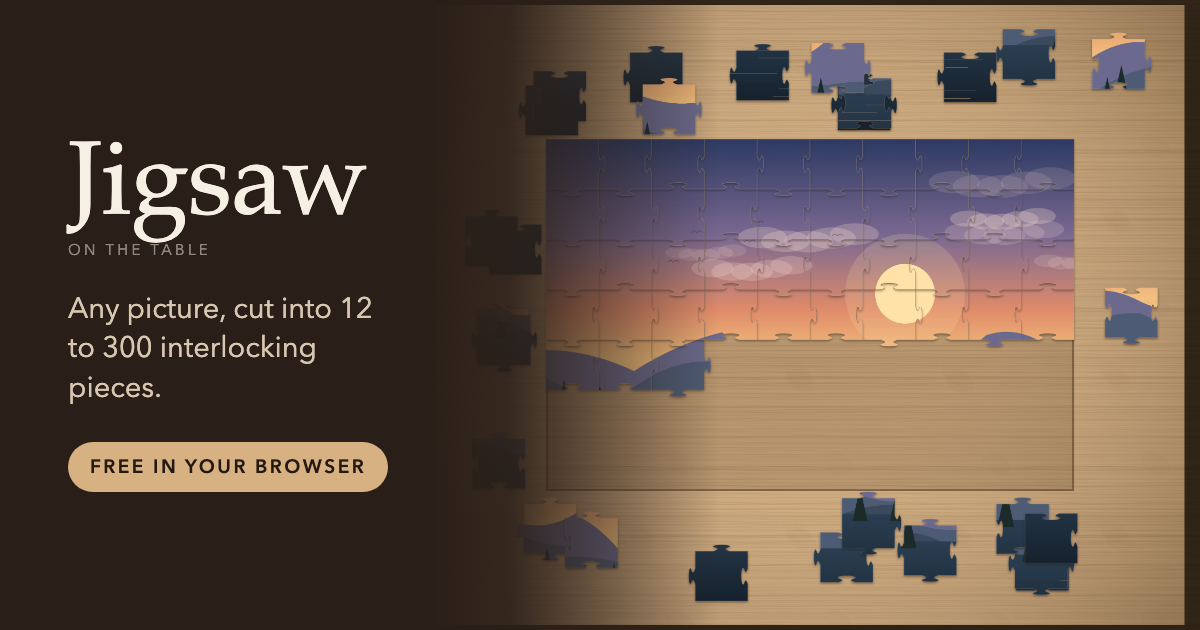
A few controls worth knowing: Show picture at the top fades the finished image in behind the mat as a guide, Gather pulls loose pieces back in when they’ve drifted off the edge of the screen, and the puzzle is only finished when the whole thing sits square on the mat.
It saves as you go. Close the tab, come back later in the same browser, and the setup card has a Resume button showing the piece count and your time so far.
What happens with a very wide or tall photo
If a photo is more than two and a half times wider than it is tall (or taller than it is wide), Jigsaw crops it from the centre to that shape before cutting. It tells you when it has done this (“That photo was very long, so it has been cropped to fit the mat”), and the preview on the setup card shows exactly the part that will be used. I did it this way because a strip that narrow can only be cut into broken-looking pieces, and showing less of the photo is better than a puzzle that’s quietly wrong. Anything within that range is used whole. Phone photos taken sideways are turned the right way up.
Where your photo goes
This is the part I’d want to know before giving any site a family photo.
- Your photo never leaves your device. Jigsaw opens and cuts it inside your browser. Nothing is uploaded, and there’s no account.
- It’s kept in this browser so you can resume. The photo is stored in your browser’s own storage (IndexedDB) alongside the positions of the pieces. There’s one saved puzzle at a time: starting a new one replaces it, and finishing a puzzle clears it. Clearing your browser’s site data removes it too.
- “Random photo” is the one thing that uses the internet. If you press it instead of using your own, the game fetches a photograph from picsum.photos. Once fetched, it’s kept like an uploaded photo, so that puzzle resumes offline. The built-in pictures and your own photos work with no connection at all.
- A puzzle link doesn’t contain your photo. The address bar shows something like
?seed=1234&pieces=300, plus the challenge and snapping settings if you changed them. That describes how the puzzle is cut and shuffled, not the picture. If you send it to someone, they get the same cut on the game’s built-in harbour picture, not your photo.
That last point is also the main limit: you can’t send a friend a puzzle of your photo through Jigsaw. You’d have to send them the photo and have them make it themselves. If sharing is the whole point, one of the sites below suits you better.
Making it harder
Under Challenge on the setup card:
- Random angles starts every piece turned a random quarter turn. To turn one, tap it and use the ↺ and ↻ buttons that appear beside it, long-press it (about half a second) for a quarter turn clockwise, or hold it with one finger and twist with a second. On a keyboard, R turns clockwise and Shift+R anticlockwise. Pieces only ever sit at quarter turns, so once it looks straight, it is.
- Hunt across the table scatters pieces over a much larger table, so finding them is part of the puzzle.
In Settings (the ⚙ button), Snapping has Generous, Normal and Precise. Precise needs a piece to be about half as close as Normal before it clicks home. I left out a pixel-perfect setting on purpose: it’s frustrating rather than hard.
Other free ways to make a photo puzzle
These are the sites I checked. I’ve only said what their own pages say.
- Jigsaw Planet lets people publish puzzles for others to play as well as make their own. Its FAQ says puzzles run from 4 to 300 pieces, there’s a randomly rotated pieces option, and puzzles can be public (listed for everyone) or private (not available to other users). It also says the site “is funded by advertising”, and that some operations need you to be signed in. The trade-off: your puzzle lives on their site, which is what makes it easy to share.
- Puzzel.org lets you upload a photo, pick a free one or paste a link, choose a preset count or set columns and rows yourself, and choose between classic tabs, straight cuts or organic pieces. It says “no account needed to try it” and shares by link or QR code. Its pricing page lists a free account with 60 player sessions a month and 2 activities, with paid plans for teachers and schools, and says “no ads, no analytics, no third-party cookies”. It’s built for classrooms, and it’s the better pick if you want to send a puzzle to someone.
I also tried Puzzlify, but its address currently goes to a domain-parking page.
So the choice is mostly about sharing. If you want to send your puzzle to someone, use a site that hosts it. If you want to do it yourself and keep the photo on your own device, use one that doesn’t.
Getting it printed as a real puzzle
There are photo-printing services that will print your own picture onto a cardboard jigsaw. I haven’t used any of them, so I won’t recommend one. The same photo advice applies, with one addition: use the full-size original, and check the service’s minimum image size before you order, since a print is far larger than any screen.
If you’d rather start on screen first, Jigsaw is free in your browser on a phone or a computer, with no download and no account.